HyperTalk
The Mac spoke first. Now it’s listening.
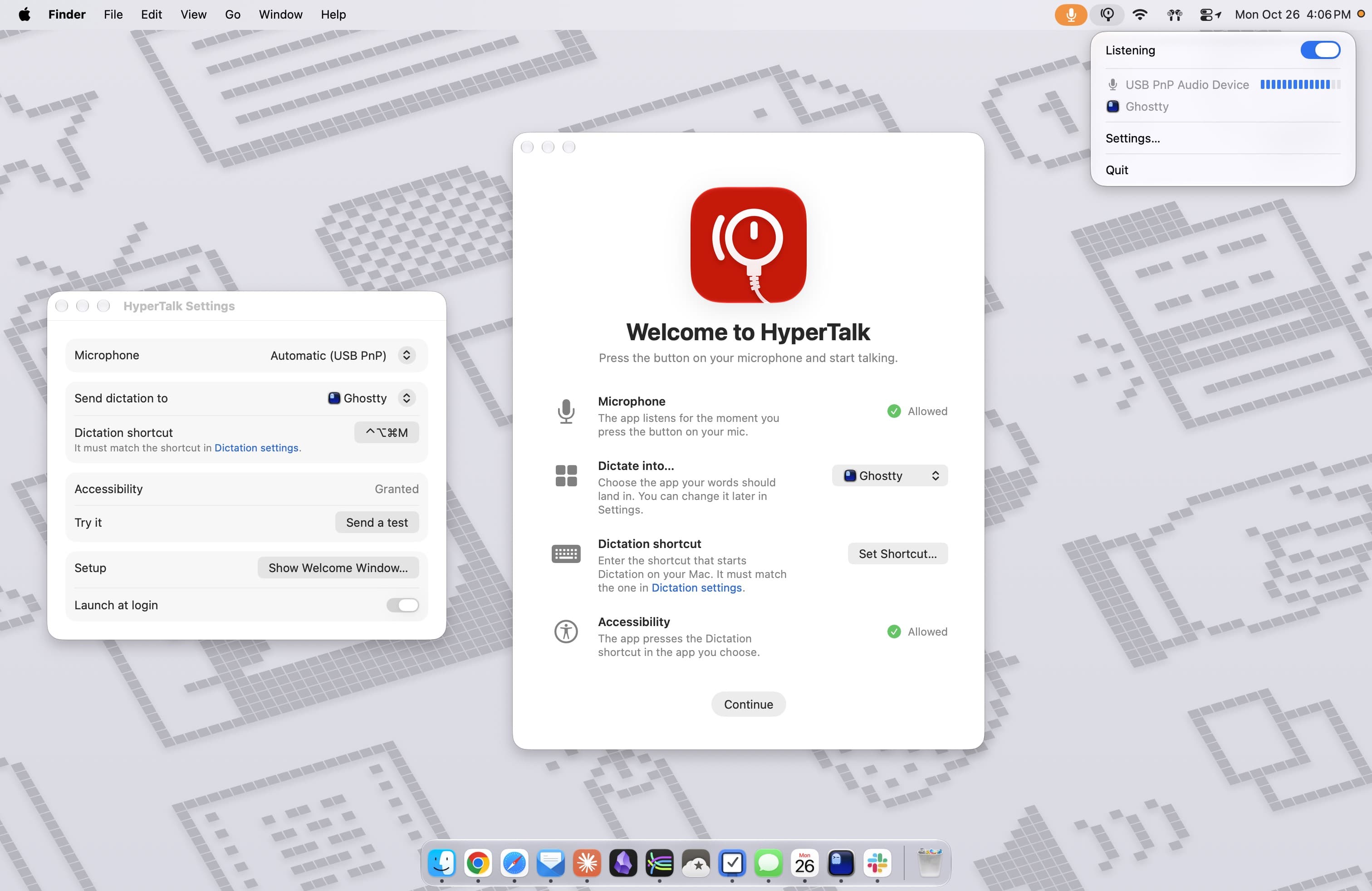
HyperTalk turns a microphone with a push-to-talk button into the fastest way to talk to your Mac. Just hold the button and speak. HyperTalk hears you, brings your chosen app forward, presses the Dictation shortcut, and your words land where you’re working.
It was built for talking to Claude Code in a terminal, and it works with any app that accepts Dictation: your text editor, notes, messages, etc. macOS Dictation handles the transcribing. HyperTalk never records, stores, or sends audio anywhere.
What you choose:
- The microphone
- The app your words go to
What you need:
- A microphone with a push-to-talk button
- Dictation turned on in System Settings with a keyboard shortcut set
Privacy policy
HyperTalk does not collect, store, or transmit any personal data.
- Microphone. HyperTalk reads the level of the microphone you choose in order to notice when you start speaking. Audio is measured in memory on your Mac and discarded immediately. It is never recorded, saved, or sent anywhere. Transcription is performed by macOS Dictation, an Apple feature governed by Apple’s privacy terms.
- Accessibility. HyperTalk uses Accessibility access for one purpose: pressing the Dictation keyboard shortcut in the app you chose. It does not read the screen or the contents of other apps.
- Network. HyperTalk makes no network connections. There are no analytics, no crash reporting, and no accounts.
- Settings. Your chosen microphone, target app, shortcut, and Launch at Login preference are stored locally on your Mac and nowhere else.
This policy is effective as of September 9, 2026. Support? Questions? Contact me.