I have been quietly building a lightweight blogging system. Not a platform, not a CMS. My goal was to make publishing to this site feel like taking a note. Obsidian is the writing environment, the vault is the site’s repo, and git push is the publish button. Every piece exists so that the distance between “I noticed something” and “it’s on the site” stays as short as possible.
For a long time the missing piece was the very first step: getting things out of the browser and into the vault. Most of what I write starts as a reaction to something I read, but the process of copying text, switching apps, pasting, fixing formatting, saving images somewhere, etc. was high enough that plenty of posts died as browser tabs.
That piece is now an extension called Intake. It runs in both Chrome and Safari, and you can install it now from the Chrome Web Store and the Mac App Store. Like DKMediaViewer, DKProductCard, and DKBezeler before it, Intake is a piece of this site’s plumbing pulled out and packaged for anyone to use.
What Intake does
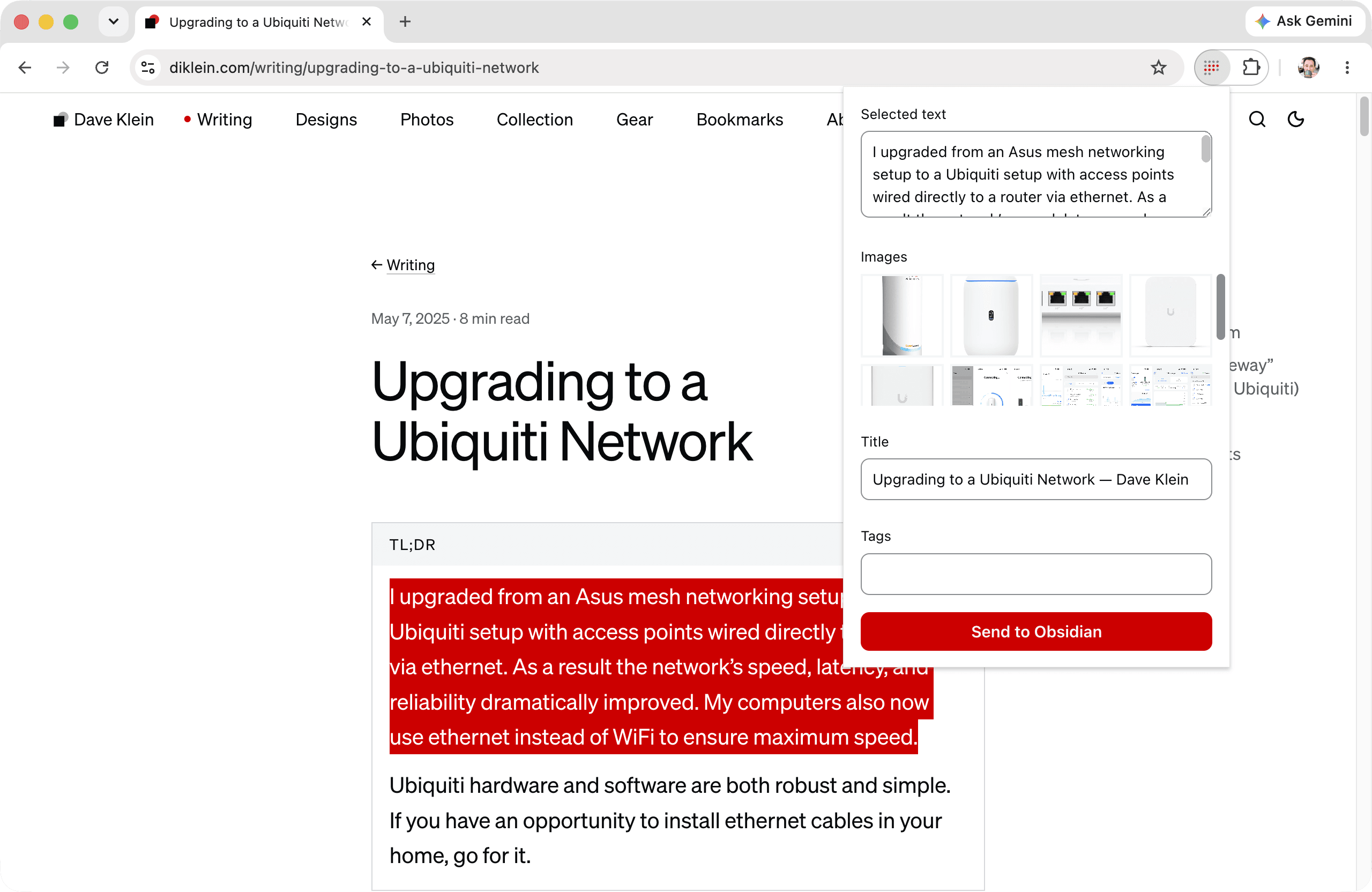
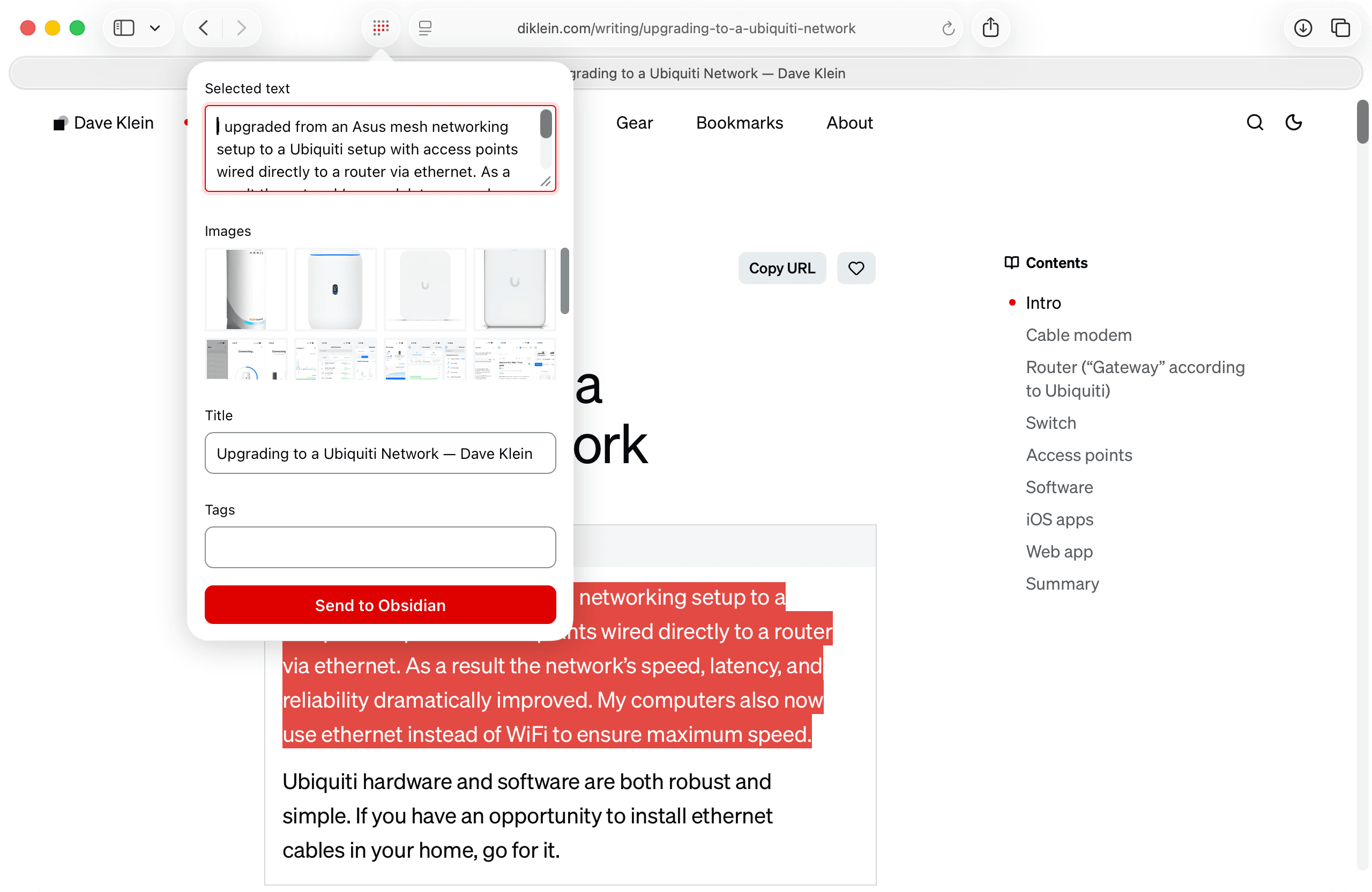
Click the toolbar icon and the extension has already read the page. Any selected text is sitting in an input. Every image on the page over 80 pixels waits to be selected in a grid. Article title and tags are ready to be populated. Click Send to Obsidian to turn all of that data into a Markdown (or MDX) file in the vault:
- Frontmatter from a template
- A source link
- Selected images saved as attachments
- Selected text as a blockquote
If you prefer to capture an entire article, clicking Capture full article runs Defuddle against the page right inside the extension, and writes the whole article to the vault as Markdown. No reader-mode copy and paste, no intermediate app.
So long, middleman
The first version of this pipeline had machinery in the middle. Captures landed in staging folders in ~/Downloads, and a launchd agent on my Macs polled those folders every two seconds to move the arrivals into the repo. It worked but ultimately it was also a daemon I had to install, monitor, and explain.
Intake simplified the flow by removing the launchd agent.
The extension now writes directly into the vault. In Chrome that runs on the File System Access API. Safari has no such API, so the extension hands each capture to a small native Swift handler inside the macOS app that every Safari extension ships in.
Working with files instead of URLs was the unlock. An obsidian:// link caps out fast because the whole payload rides in the URL. A file has no ceiling, survives Obsidian not running, and arrives precisely where the vault expects it.
The icon as a system
The mark is a grid of dots standing in for lines of text with red dots acting as text selections. But an icon that has to live from a 16 pixel toolbar up to a 1024 pixel App Store tile cannot be one drawing scaled four ways. Each size is carefully redrawn. At 16 pixels the idea sheds down to three dot-lines because anything more complex or subtle loses its meaning. At 32 and 128 pixels fidelity increases. The macOS app icon at 1024 pixels becomes a full ragged paragraph of dots.
The colors differ on purpose too. The toolbar sizes use neutral gray dots instead of black because a single PNG has to serve both light and dark mode toolbars. Near-black circles vanish in dark mode! I also learned that Safari tints grayscale toolbar icons blue, but an icon with real colors keeps its own colors. The red is the reason the mark retains its branding in Safari.
Obscure Apple lore
Every Safari extension ships inside a Mac app, so Intake naturally has one. Its single window shows the mark, two setup steps, and a button that opens Safari’s settings. Below a horizontal rule I added:
Step 3? There’s no step 3
Why? Ask Jeff Goldblum.
Start capturing the web with Intake today!


Chat about this?
Send a comment